> ## Documentation Index
> Fetch the complete documentation index at: https://docs.velatir.com/llms.txt
> Use this file to discover all available pages before exploring further.
# Escalations
> Notify the right people when a high-criticality finding needs attention.
## What Is an Escalation?
Most traces are handled by your agents without anyone needing to step in. An escalation is a **notification**: Velatir tells the right people through your connected channels that something happened.
This is not a hold. The person's prompt is not paused waiting for someone to click Approve in the dashboard. An Enforcer has already allowed or blocked the trace. The escalation is how reviewers find out.
Human review that *does* change access lives on the agents themselves: [Gatekeeper access requests](/agents/gatekeeper#access-requests) and [Data Protector false-positive challenges](/agents/data-protector#false-positive-challenges).
## When a Trace Is Escalated
A high-criticality finding on an Enforcer notifies your channels. You decide which findings are high criticality through your [Data Protector categories](/agents/data-protector) and your [instructions](/agents/instructions). Observer agents flag for review in Assessments; they do not notify channels.
## Connect a Channel
Escalations are sent to the channels you connect under **Settings → Channels**.
Connect Slack from the dashboard, then add Velatir to the channel where your reviewers work. Escalations arrive there.
 Until the Velatir app is in the Microsoft Teams store, a Teams administrator uploads it for your organisation.
1. Download the [Velatir app package](https://cdn.velatir.com/velatir-teams.zip).
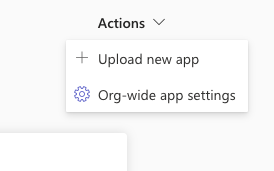
2. Open [Manage apps](https://admin.teams.microsoft.com/policies/manage-apps) in the Teams admin center. Under **Actions**, choose **Upload new app** and upload the zip.
Until the Velatir app is in the Microsoft Teams store, a Teams administrator uploads it for your organisation.
1. Download the [Velatir app package](https://cdn.velatir.com/velatir-teams.zip).
2. Open [Manage apps](https://admin.teams.microsoft.com/policies/manage-apps) in the Teams admin center. Under **Actions**, choose **Upload new app** and upload the zip.
 3. In Microsoft Teams, add **Velatir** from Apps to the channel, group chat, or personal chat that should receive escalations.
4. In Velatir, open **Settings → Channels**, connect Microsoft Teams, and copy the one-time code.
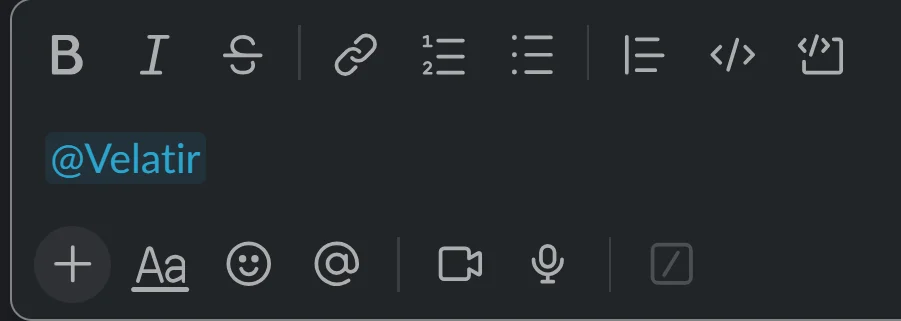
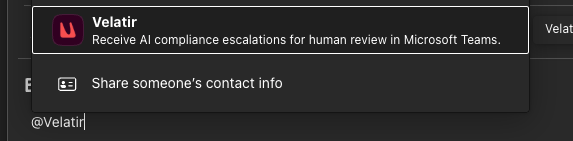
5. In the chat, type `@Velatir` to tag the app. Pasting the mention does not tag it.
3. In Microsoft Teams, add **Velatir** from Apps to the channel, group chat, or personal chat that should receive escalations.
4. In Velatir, open **Settings → Channels**, connect Microsoft Teams, and copy the one-time code.
5. In the chat, type `@Velatir` to tag the app. Pasting the mention does not tag it.
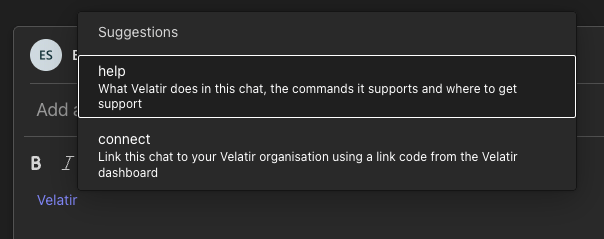
 6. Choose **connect** from the suggestions, then enter the code.
 The code expires after a short window; generate a new one if it lapses.
Add a phone number to receive escalations as SMS. The number must be verified. Text-message channels are an entitlement — if the option is locked, contact us to turn it on.
You can send a test notification from the channel card to confirm delivery without waiting for a real finding.
## Delivery
Each channel is notified independently. One channel failing does not stop the others. On the trace you can see whether a notification was sent.
Every high-criticality finding, and the channels it was sent to, stays on the session record.
***
Where notification fits in a trace's journey.
Set which findings are high criticality.
The code expires after a short window; generate a new one if it lapses.
Add a phone number to receive escalations as SMS. The number must be verified. Text-message channels are an entitlement — if the option is locked, contact us to turn it on.
You can send a test notification from the channel card to confirm delivery without waiting for a real finding.
## Delivery
Each channel is notified independently. One channel failing does not stop the others. On the trace you can see whether a notification was sent.
Every high-criticality finding, and the channels it was sent to, stays on the session record.
***
Where notification fits in a trace's journey.
Set which findings are high criticality.